

AdsPower is used to create and manage separate browser profiles where you can store cookies, browser settings, proxies, and other working environment parameters.
However, a browser profile and a network connection are different components.
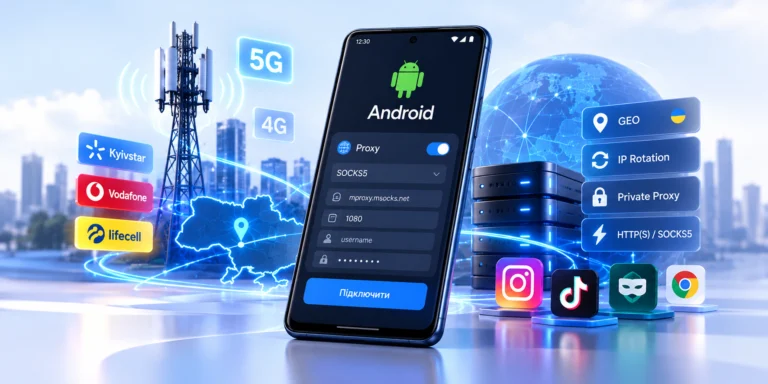
If a project requires a mobile carrier IP address, Ukrainian GEO, a separate network environment, or controlled IP rotation, one practical option is mobile proxies for AdsPower.
AdsPower officially supports HTTP, HTTPS, SOCKS5, and SSH proxies. For HTTP/HTTPS and SOCKS5, you need to specify Host:Port, username, and password, after which the connection can be checked using the built-in Check Proxy function. Mobile proxies also have a dedicated Change IP URL field.
In this guide, we will explain how the AdsPower + mobile proxy setup works, how to add a proxy correctly, which protocol to choose, how to check IP and GEO, configure rotation, and troubleshoot situations when the proxy does not work.
What Is AdsPower?
AdsPower is an anti-detect browser designed for working with separate browser profiles.
Each profile can have its own:
- cookies;
- browser settings;
- language;
- timezone;
- proxy;
- WebRTC;
- Canvas;
- WebGL;
- other browser environment parameters.
The current version of AdsPower also supports teamwork, batch profile management, RPA, Local API, and separate proxy management.
At the same time, AdsPower is not a proxy provider: the official documentation explicitly states that the service does not provide its own built-in proxies, but it allows users to save purchased proxies in the Proxies section and use them in browser profiles.
Why Does AdsPower Need a Proxy?
If you create several browser profiles but all of them access the internet through the same regular connection, the network route remains shared.
A proxy allows you to move it into a separate configuration.
A regular setup:
AdsPower profile → internet provider → website
With a mobile proxy:
AdsPower profile → proxy server → 4G/5G modem → mobile carrier → website
As a result, the external resource sees the public IP address of the mobile carrier.
AdsPower is responsible for the browser environment, while the proxy is responsible for the network layer.
These components work together but perform different functions.
What Is a Mobile Proxy for AdsPower?
A mobile proxy is a proxy whose outgoing traffic passes through a mobile carrier.
A typical setup:
AdsPower → HTTP/SOCKS5 proxy → SIM/modem → mobile carrier → internet
When configured correctly, the website sees a mobile carrier IP address instead of the user’s regular IP address.
This is what differentiates mobile proxies from datacenter proxies, where the IP usually belongs to a server or hosting network.
How 4G/LTE, CGNAT, and IP rotation work is already covered in more detail in the separate MSOCKS article “Mobile Proxies: 4G/LTE, CGNAT and IP Rotation.”
What Are Mobile Proxies Used for With AdsPower?
Working With Client Projects
For an agency, the structure may look like this:
Client A → AdsPower profile A → proxy A
Client B → AdsPower profile B → proxy B
Client C → AdsPower profile C → proxy C
This approach helps separate:
- browser sessions;
- cookies;
- network settings;
- GEO;
- client environments.
This is especially convenient for teams where several employees manage different permitted business projects.
SMM
AdsPower positions its profiles, among other things, for working with Instagram, Facebook, TikTok, and other social platforms.
A mobile proxy in this scenario can be used as a separate network endpoint for:
- an SMM project;
- regional QA;
- localized content;
- landing page testing;
- teamwork.
E-commerce
AdsPower is also used for separate store profiles and marketplace workflows.
For example:
Store UA → Profile UA → Ukrainian proxy
Store PL → Profile PL → Polish proxy
Store DE → Profile DE → German proxy
For legitimate e-commerce tasks, this simplifies testing localized store versions, currency, GEO, shipping pages, and regional content.
GEO and QA
A mobile proxy is especially useful when you need to test a website specifically through the network of a particular mobile carrier.
For example, an employee is physically outside Ukraine but is checking a Ukrainian project.
In this case, a Ukrainian mobile IP can be used for:
- GEO QA;
- localization;
- price verification;
- regional redirects;
- local search results;
- mobile landing pages.
Mobile, Residential, or Datacenter Proxy for AdsPower
Not every AdsPower profile requires a mobile proxy.
| Parameter | Mobile | Residential | Datacenter |
|---|---|---|---|
| IP source | Mobile carrier | ISP/home network | Datacenter |
| Network | 4G/LTE/5G | Residential ISP | Server network |
| GEO | Depends on carrier | Depends on pool | Depends on server |
| Rotation | Often available | Often available | Depends on service |
| Sticky session | Possible | Often available | Often static |
| Cost | Higher | Medium/high | Usually lower |
| Mobile GEO QA | Strong use case | Possible | Less natural option |
If the task requires only a stable server IP, a mobile proxy may be unnecessary.
However, if you specifically need:
- a mobile carrier IP;
- Ukrainian mobile GEO;
- controlled rotation;
- testing through 4G/5G;
then a mobile proxy is the more logical solution.
How to Set Up a Mobile Proxy in AdsPower
Now we come to the main search intent — how to add a proxy in AdsPower.
The official AdsPower documentation describes this process through +New Profile → Proxy.
Step 1. Get Your Mobile Proxy Details
In the provider dashboard, you will need:
- proxy host or IP;
- port;
- login;
- password;
- protocol;
- Change IP URL, if available.
A typical format:
HOST:PORT:LOGIN:PASSWORD
For example, credentials may be shown separately:
Host: proxy.example.com
Port: 12345
Login: user123
Password: password123
Use only the actual credentials from your proxy account.
Step 2. Create a Profile in AdsPower
Open AdsPower.
Click:
New Profile
Then open:
Proxy
This section configures the network connection for a specific browser profile. The official AdsPower documentation uses this exact workflow.
Step 3. Choose the Proxy Type
AdsPower supports:
- HTTP;
- HTTPS;
- SOCKS5;
- SSH.
For MSOCKS mobile proxies, the main practical options are:
HTTP(S)
or
SOCKS5
HTTP or SOCKS5 for AdsPower
Both options can work well.
HTTP(S)
Practical for:
- browser usage;
- web services;
- simple proxy setup;
- standard browser workflows.
SOCKS5
May be convenient for:
- AdsPower;
- desktop software;
- several types of traffic;
- tools that directly support SOCKS5.
For most users, what matters more than the word SOCKS5 itself is:
- stability;
- latency;
- GEO;
- correct credentials;
- mobile network quality.
Step 4. Enter Host, Port, Login, and Password
AdsPower uses the following main fields:
Host:Port
Proxy username
Proxy Password
This directly corresponds to the current official AdsPower instructions.
Check your credentials before saving.
The most common mistakes are:
- incorrect port;
- an extra space;
- a typo in the password;
- incorrect proxy protocol;
- outdated credentials.
Step 5. Click Check Proxy
After entering the details, use:
Check Proxy
If AdsPower connects successfully, the system displays:
Connection test passed
If the connection fails:
Connection test failed.
Do not launch the working profile until the proxy passes the basic connection test.
How to Configure Change IP URL in AdsPower
This is where mobile proxies have an important advantage.
AdsPower has a dedicated field:
Change IP URL
The official documentation explicitly states that this URL is used for mobile proxies.
The mechanism is simple:
same proxy endpoint → Change IP URL → reconnect mobile network → new public IP
If the proxy provider supplies a rotation URL, it can be inserted into the corresponding AdsPower field.
This makes changing the IP more convenient because you do not need to manually open the proxy service dashboard every time.
An Important Detail About Change IP URL
If several AdsPower profiles use the same mobile proxy, an IP-change command may change the address for all profiles connected to that endpoint.
AdsPower explicitly warns about this in its documentation.
For example:
Profile A → Proxy 1
Profile B → Proxy 1
Profile C → Proxy 1
Rotating Proxy 1 may affect A, B, and C at the same time.
For independent working environments, this should be taken into account when designing your profile architecture.
Sticky Session or Rotation in AdsPower
You do not need to constantly change the IP.
Sticky Session
A stable connection is better suited for:
- long browser sessions;
- content uploads;
- e-commerce;
- SMM;
- working in admin panels;
- analytics;
- long forms.
Rotation
Changing the IP is useful for:
- a new GEO test;
- checking another mobile carrier IP;
- network QA;
- starting a new independent test;
- checking the rotation mechanism.
Rotation should be used when it solves a specific technical task.
Should You Change the IP During an Active Session?
In most cases, no.
During IP rotation, current network connections may be interrupted.
Therefore, it is not recommended to perform rotation during:
- authentication;
- upload;
- download;
- form submission;
- an important operation in an admin panel.
The basic MSOCKS material about mobile proxies also notes that active TCP connections are usually interrupted during rotation.
A more practical workflow is:
finish the operation → perform rotation → wait for the connection → continue working
How to Use the Proxies List in AdsPower
AdsPower has a separate Proxies section where purchased endpoints can be stored.
The list may contain information about:
- proxy type;
- outbound IP;
- profiles;
- proxy status;
- remark;
- provider.
Users can also:
- add a proxy;
- check it;
- edit it;
- delete it;
- change the IP;
- reuse a saved proxy in profiles.
For a team, this is much more convenient than storing credentials in a random text file.
How to Name Proxies Properly
With ten profiles, names such as:
proxy1proxy2proxy3
may still be manageable.
With a hundred, they are not.
It is better to use a structure like:
UA-Kyivstar-01UA-Vodafone-01UA-Life-01
or:
ClientA-UA-KyivstarStore-UA-01SMM-UA-02
This makes it immediately clear:
- GEO;
- carrier;
- client;
- purpose.
One Proxy per AdsPower Profile?
There is no universal rule.
However, for independent client or test environments, a simple structure:
Profile A → Proxy A
Profile B → Proxy B
Profile C → Proxy C
has an obvious administrative advantage.
It allows you to quickly understand:
- which endpoint is used by the profile;
- which GEO is used;
- which carrier is used;
- where there is a speed problem;
- which proxy needs to be replaced;
- where rotation was performed.
A similar model is often used in modern AdsPower mobile proxy setup guides.
This does not mean that proxies should be used to bypass platform rules. The purpose is to isolate permitted working environments, QA, and administration.
How to Check a Mobile Proxy After Launching AdsPower
The built-in Check Proxy is only the first test.
After opening the profile, it is a good idea to test the actual connection.
IP
Make sure the external IP address has changed.
GEO
Check the country.
If you purchased a Ukrainian mobile proxy, Ukraine should be detected.
ASN
Check the ASN.
This helps identify the network origin of the address.
Mobile Carrier
Make sure the address belongs to the expected mobile carrier network.
Ping
For comfortable browser use, latency matters just as much as download speed.
Download
Check page and media loading.
Upload
Important for:
- Instagram;
- TikTok;
- e-commerce;
- SMM;
- uploading creatives;
- forms/files.
Stability
Do not judge the connection after 30 seconds.
Keep the profile active for 30–60 minutes.
Check for:
- disconnects;
- sudden speed drops;
- unexpected IP changes;
- network errors.
Rotation
Run Change IP and verify:
old IP → rotation → reconnect → new IP
Then check GEO and ASN again.
AdsPower Proxy Is Not Working: What to Check
This section is important not only in practice but also for long-tail SEO.
1. Connection Test Failed
If AdsPower shows:
Connection test failed
first check:
- host;
- port;
- username;
- password;
- proxy type.
2. Wrong Protocol
If the provider issued SOCKS5 credentials but HTTP is selected in AdsPower, the connection may not work.
Check the protocol.
3. Port Error
It is easy to confuse the port with other numbers in the dashboard.
Copy it again.
4. Login or Password
Pay special attention to:
0 / O1 / l
as well as special characters and extra spaces.
5. Active VPN
A VPN or system-level proxy may create an additional network layer.
AdsPower itself recommends avoiding conflicting double proxy/VPN configurations during network troubleshooting.
6. Firewall or Antivirus
A local firewall may block the proxy port.
7. Does the Proxy Work Outside AdsPower?
Check the endpoint using another proxy checker.
If it does not work anywhere, the problem is probably with the proxy service or network.
8. Mobile Network Is Temporarily Unavailable
A mobile proxy physically depends on:
- SIM;
- modem;
- signal;
- carrier;
- base station;
- proxy gateway.
Therefore, the connection may behave differently from a regular datacenter proxy.
AdsPower Shows the Wrong GEO
Do not rely on a single GEO database.
Check the IP using several independent services.
If one checker detects the wrong country but several others show the correct one, the issue may be with that checker’s database.
If all of them detect the wrong GEO, check the proxy with the provider.
Why Is the Proxy Slow in AdsPower?
The reason is not always AdsPower.
For a mobile proxy, speed depends on:
- signal quality;
- carrier load;
- 4G/5G coverage;
- routing;
- proxy gateway;
- time of day;
- network load.
Therefore, the proxy should be evaluated in a real browser workflow rather than with a single Speedtest.
4G or 5G Mobile Proxy for AdsPower
5G does not guarantee a better result.
A stable 4G connection may work better than an unstable 5G connection.
You should compare:
- ping;
- download;
- upload;
- jitter;
- stability;
- carrier;
- GEO.
If AdsPower is mainly used for browser operations, stability is often more practical than the highest possible Speedtest result.
Free Proxies for AdsPower
Public free proxies have several obvious disadvantages:
- unknown network load;
- unknown IP history;
- the endpoint may disappear;
- unstable speed;
- no proper support;
- unclear infrastructure ownership.
For a real client project or working profile, a stable paid endpoint is usually more practical.
MSOCKS already has a separate article Why Free Mobile Proxies Are a Trap.
Ukrainian MSOCKS Mobile Proxies for AdsPower
For tasks where a Ukrainian mobile IP is required, MSOCKS provides mobile proxies through Ukrainian mobile carrier networks.
For AdsPower, the practical setup looks like this:
MSOCKS → HTTP/SOCKS5 → AdsPower profile → target resource
Before use, it is worth checking:
- IP;
- GEO;
- ASN;
- operator;
- ping;
- upload;
- stability;
- rotation.
Because AdsPower has a dedicated Change IP URL field, a mobile proxy with controlled rotation can be integrated without constantly switching manually between multiple interfaces.
How to Connect MSOCKS to AdsPower
1. Get a Mobile Proxy
Choose the required Ukrainian operator.
2. Copy the Credentials
You will need:
- host;
- port;
- login;
- password;
- protocol;
- rotation URL, if used.
3. Create a New Profile
In AdsPower, open:
New Profile → Proxy
4. Choose HTTP or SOCKS5
Use the protocol that matches your MSOCKS credentials.
5. Enter the Details
Enter:
Host:Port
Proxy Username
Proxy Password
6. Add Change IP URL
If you use controlled rotation, paste the appropriate URL.
7. Click Check Proxy
AdsPower should show a successful connection.
8. Launch the Profile
Check:
IP → GEO → ASN → operator → speed → stability
9. Test Rotation
After completing the active operation, change the IP and verify the new address.
Kyivstar, Vodafone, or Life for AdsPower
There is no single universally best carrier.
The result depends on:
- the specific resource;
- carrier routing;
- signal;
- network load;
- time;
- proxy node.
Therefore, a better approach is:
Kyivstar → test
Vodafone → test
Life → test
and then compare actual:
- ping;
- download;
- upload;
- GEO;
- stability;
- rotation.
Mobile Proxy and AdsPower Fingerprint
These are two different concepts and should not be confused.
A proxy is responsible for:
- external IP;
- network route;
- network GEO;
- network provider.
An AdsPower profile is responsible for the browser environment.
AdsPower itself allows IP-related environment settings to be configured together with language, timezone, WebRTC, Canvas, WebGL, and other profile parameters.
However, changing the proxy alone does not replace the browser profile.
Likewise, a new fingerprint does not change the network IP without a proxy or another network connection.
AdsPower or Dolphin Anty for Mobile Proxies
From the perspective of proxy connectivity, both tools allow you to use an external proxy endpoint.
Therefore, you should not choose an anti-detect browser based only on proxy support.
It is more important to compare:
- UI;
- team management;
- automation;
- profile management;
- Local API;
- pricing;
- the specific workflow.
For Dolphin Anty, MSOCKS already has a separate Mobile Proxies for Dolphin Anty: Complete Setup Guide.
Mobile Proxies for AdsPower: Pre-Launch Checklist
Before starting work, check:
- The correct proxy protocol is selected.
- Host and port are entered without errors.
- Username and password are correct.
Check Proxypasses successfully.- The external IP has changed.
- GEO matches the required country.
- ASN matches the expected network.
- The mobile carrier is correct.
- Ping is acceptable.
- Download speed is sufficient.
- Upload speed is sufficient.
- The connection is stable.
- Change IP URL works.
- The connection recovers after rotation.
- The IP does not change unnecessarily.
This type of test is more useful than choosing a proxy solely because it is labeled “4G” or “5G.”
FAQ
What Proxies Does AdsPower Support?
AdsPower officially supports HTTP, HTTPS, SOCKS5, and SSH proxies, as well as IPv4 and IPv6.
How Do I Add a Mobile Proxy to AdsPower?
Open New Profile → Proxy, select the protocol, enter Host:Port, username, and password, then click Check Proxy and save the profile.
What Is Change IP URL in AdsPower?
It is a field for a URL that allows the IP address of a mobile proxy to be changed. AdsPower explicitly states that Change IP URL is intended for mobile proxies.
Is HTTP or SOCKS5 Better for AdsPower?
Both protocols are supported by AdsPower. HTTP(S) is often sufficient for standard browser usage, while SOCKS5 may be more convenient for broader software workflows.
Can Proxies Be Added as a Separate List?
Yes. AdsPower has a separate Proxies section where purchased proxies can be stored, checked, edited, and then used in profiles.
Why Does AdsPower Show Connection Test Failed?
The most common things to check are host, port, login, password, proxy protocol, proxy endpoint status, VPN, and firewall.
Can I Change the IP Without Replacing Proxy Credentials?
Yes, if the mobile proxy provider supports rotation and provides a special URL. It can be added to AdsPower through Change IP URL.
How Often Should You Change the IP?
There is no universal interval.
For a long active session, a stable connection is often more practical. Rotation is better performed between separate technical operations rather than in the middle of an active connection.
Do You Need a Separate Proxy for Every AdsPower Profile?
Not always. However, for independent client, QA, or working environments, separate endpoints simplify inventory, GEO control, diagnostics, and rotation management.
Are Ukrainian Mobile Proxies Suitable for AdsPower?
Yes, if the specific task requires a Ukrainian carrier IP, mobile GEO, or testing through a Ukrainian mobile network.
Does a Mobile Proxy Guarantee No Account Restrictions?
No.
A proxy changes the network connection but does not override the rules, security checks, moderation, or verification mechanisms of a specific platform.
Conclusion
Mobile proxies for AdsPower are primarily a way to manage the network environment of an individual browser profile.
The correct setup is simple:
mobile proxy → AdsPower profile → Check Proxy → IP/GEO verification → stability test → controlled rotation
AdsPower works well for this scenario because it supports HTTP/HTTPS and SOCKS5, has a built-in proxy checker, and provides a dedicated Change IP URL for mobile proxies.
At the same time, you should not evaluate a proxy only by labels such as “4G” or “5G.” Before using it, it is important to actually check:
IP → ASN → operator → GEO → ping → download → upload → stability → rotation
This approach helps determine whether a specific mobile proxy is suitable for your AdsPower workflow.