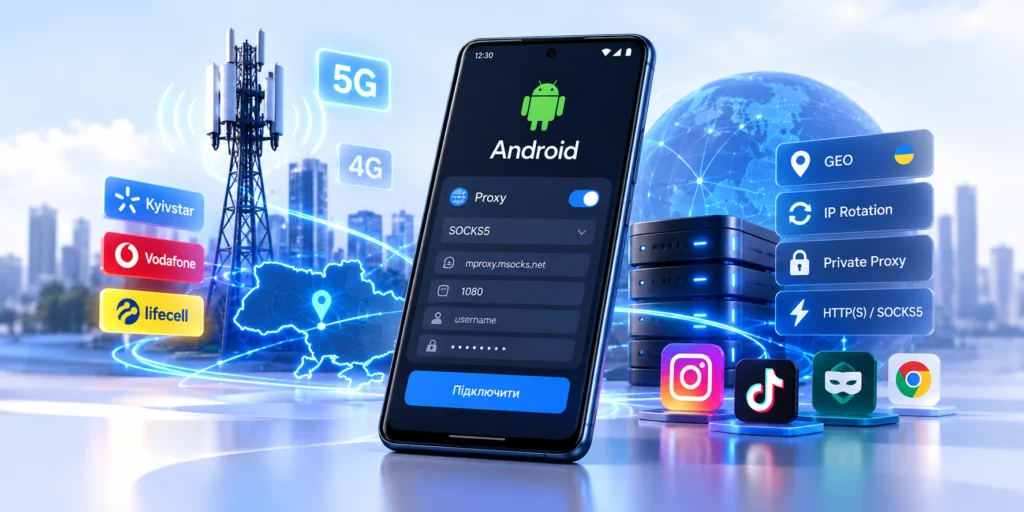
A mobile proxy on Android is useful when your traffic needs to go through a specific IP address, country, mobile carrier or separate network environment. This matters for SMM, GEO testing, mobile landing page QA, Instagram or TikTok workflows, anti-detect browser profiles and other cases where IP origin and connection stability are important.
However, Android proxy settings are often misunderstood. The built-in proxy option usually works only for a specific Wi-Fi network. It may not support username and password authentication, does not normally support SOCKS5, and some apps may ignore system proxy settings completely.
That is why the correct setup depends on what you need: a proxy for browser traffic on Wi-Fi, a proxy for a specific Android app, HTTP(S) or SOCKS5 with authentication, mobile data routing over 4G/5G, or a stable network environment for social media and QA.
What You Need Before Setup
Before opening Android settings, prepare your proxy details:
- Host;
- Port;
- Protocol: HTTP, HTTPS or SOCKS5;
- Username and password, if authentication is used;
- Rotation URL, if available;
- Required GEO and mobile carrier.
With MSOCKS, Android workflows can use Ukrainian mobile proxies through Kyivstar, Vodafone or lifecell, with HTTP(S), SOCKS5/UDP and controlled IP rotation. For a deeper technical explanation, link internally to the MSOCKS article about 4G/LTE, CGNAT and IP rotation.
Set Up a Proxy Through Android Wi-Fi Settings
This is the simplest method, but it has the most limitations. It can work when you only need an HTTP proxy for browser traffic on one Wi-Fi network.
Step-by-Step Wi-Fi Proxy Setup
- Open Settings on your Android device.
- Go to Wi-Fi or Network & Internet.
- Tap the connected Wi-Fi network.
- Open Advanced settings or Modify network.
- Find Proxy.
- Select Manual.
- Enter the proxy host in Proxy hostname.
- Enter the port in Proxy port.
- Save the settings.
- Open a browser and check your external IP.
After this, some HTTP/HTTPS traffic on that Wi-Fi network may go through the proxy.
Limits of Android Wi-Fi Proxy Settings
The built-in Android Wi-Fi proxy is not a universal device-wide proxy. It may not be suitable if your proxy requires username and password, you need SOCKS5, you want to proxy mobile data over 4G/5G, the target app ignores system proxy settings, or you need reliable full-device routing.
For paid mobile proxies, a dedicated Android proxy app is often more practical.
Use an Android Proxy App
If you need SOCKS5, username/password authentication or proxy routing for specific apps, use an Android proxy client that supports HTTP and SOCKS5.
This method is better for SOCKS5 proxy on Android, mobile proxies with login and password, Instagram and TikTok workflows, SMM tools, GEO testing and cases where Android system proxy settings are ignored.
General Proxy App Setup
- Install an Android proxy app that supports HTTP/SOCKS5.
- Create a new proxy profile.
- Select the protocol: HTTP, HTTPS or SOCKS5.
- Enter host and port.
- Add username and password if required.
- Enable the connection.
- Choose whether to route the whole device or selected apps, if supported.
- Check external IP, GEO and ASN.
This approach is usually better for professional mobile proxies because the proxy client can handle authentication internally.
Use APN Proxy Settings for Mobile Data
Some Android devices allow a proxy to be added inside APN settings. APN stands for Access Point Name and controls how your phone connects to the mobile carrier network.
The path usually looks like this:
Settings -> Mobile network -> SIM -> Access Point Names / APN
Open the active APN and check whether fields such as Proxy, Port, Username or Password are available.
When APN Proxy Is Not Enough
APN proxy settings are not always reliable. Not every carrier allows APN editing, not every Android version exposes the required fields, proxy authentication may not be supported, SOCKS5 is usually not suitable for APN setup, and an incorrect APN can break mobile internet connectivity.
Use APN carefully. For authenticated SOCKS5 or stable app-level routing, a proxy app is usually the better option.
HTTP or SOCKS5: Which Should You Choose on Android?
HTTP(S) is practical for browser usage, web services, simple setup, some SMM tools and quick IP or GEO checks.
SOCKS5 is often useful for Android proxy apps, specialized clients, anti-detect browsers, tools that directly support SOCKS5 and more flexible traffic routing.
For MSOCKS, choose the protocol that matches your app. Browser workflows often work well with HTTP(S), while specialized tools may require SOCKS5.
How to Use a Mobile Proxy for Instagram on Android
For Instagram, the IP address is only one part of the environment. The platform may also consider cookies, device signals, login history, language, timezone and user behavior. A proxy does not make an account invisible and does not guarantee that restrictions will not happen.
A practical setup is simple: use a stable mobile proxy, do not rotate the IP during login or uploads, check GEO and ASN before logging in, use a sticky session for long work sessions and separate independent projects into separate environments when needed.
For a dedicated Instagram guide, link internally to the MSOCKS article about mobile proxies for Instagram.
How to Check That the Proxy Works
Do not start a working account or important workflow immediately after setup. First, test the connection.
Check IP, GEO, ASN, carrier, DNS, WebRTC, ping, download speed, upload speed, rotation and stability. For Instagram and TikTok, upload speed is especially important because these platforms rely heavily on media.
Common Android Proxy Setup Mistakes
The most common mistakes are wrong protocol, wrong port, extra spaces in credentials, trying to use SOCKS5 in Wi-Fi proxy settings, expecting Wi-Fi proxy to work on mobile data, rotating IP too often and not checking ASN or GEO.
A proxy sold as a “Ukraine proxy” should still be verified. Check the actual IP, country, ASN and carrier before using it in a real workflow.
MSOCKS Mobile Proxies for Android
MSOCKS is suitable when you need a Ukrainian mobile IP, stable sessions and controlled IP rotation.
For Android scenarios, MSOCKS offers Ukrainian GEO, Kyivstar, Vodafone and lifecell mobile networks, private proxy model, HTTP(S) and SOCKS5/UDP, unlimited traffic, IP rotation through dashboard, link or timer, and a trial before purchase.
The practical setup is:
MSOCKS -> HTTP/SOCKS5 proxy -> Android proxy app or Wi-Fi setup -> target app -> IP/GEO/ASN check
Before buying, test your real workflow: browser, Instagram, TikTok, SMM tool, uploads, session stability and IP rotation.
FAQ
Can I set up a proxy on Android without an app?
Yes, but mainly for Wi-Fi and HTTP proxy scenarios. For SOCKS5, username/password authentication or mobile data, a proxy app is usually required.
Where are proxy settings on Android?
Usually: Settings -> Wi-Fi -> current network -> Advanced settings -> Proxy -> Manual. Exact names vary by Samsung, Xiaomi, Pixel and other devices.
Does Android Wi-Fi proxy work for Instagram?
Not always. Some apps ignore system proxy settings. For Instagram, a proxy app or separate working environment is often more reliable.
How do I set up a SOCKS5 proxy on Android?
Use an Android proxy app that supports SOCKS5 and allows you to enter host, port, username and password.
Can I use a proxy with 4G or 5G mobile data on Android?
Yes, but not through standard Wi-Fi proxy settings. You can try APN proxy if supported, or use a proxy app.
Why is my Android proxy not working?
Common reasons include wrong protocol, wrong port, incorrect credentials, unsupported SOCKS5, app bypassing the proxy, incorrect APN settings or missing IP whitelist.
Which is better for Android: HTTP or SOCKS5?
HTTP(S) is often enough for browser workflows. SOCKS5 is better for apps and tools that directly support it.
Does a mobile proxy protect an account from restrictions?
No. A proxy changes the network route and external IP, but it does not replace device signals, cookies, account behavior or platform rules.
Conclusion
Setting up a mobile proxy on Android is easy only when the use case is simple. For browser testing on Wi-Fi, Android system settings may be enough. For SOCKS5, login/password authentication, Instagram, TikTok, SMM tools or 4G/5G mobile data, a dedicated proxy app is usually the more practical choice.
After setup, always check:
IP -> GEO -> ASN -> carrier -> DNS -> WebRTC -> speed -> stability -> rotation
If you need a Ukrainian mobile IP for Android, SMM, GEO testing or mobile app workflows, test MSOCKS in your real scenario before choosing a plan.